12 min read
OpenClaw Installation Guide: From Zero to AI Agent in 10 Minutes
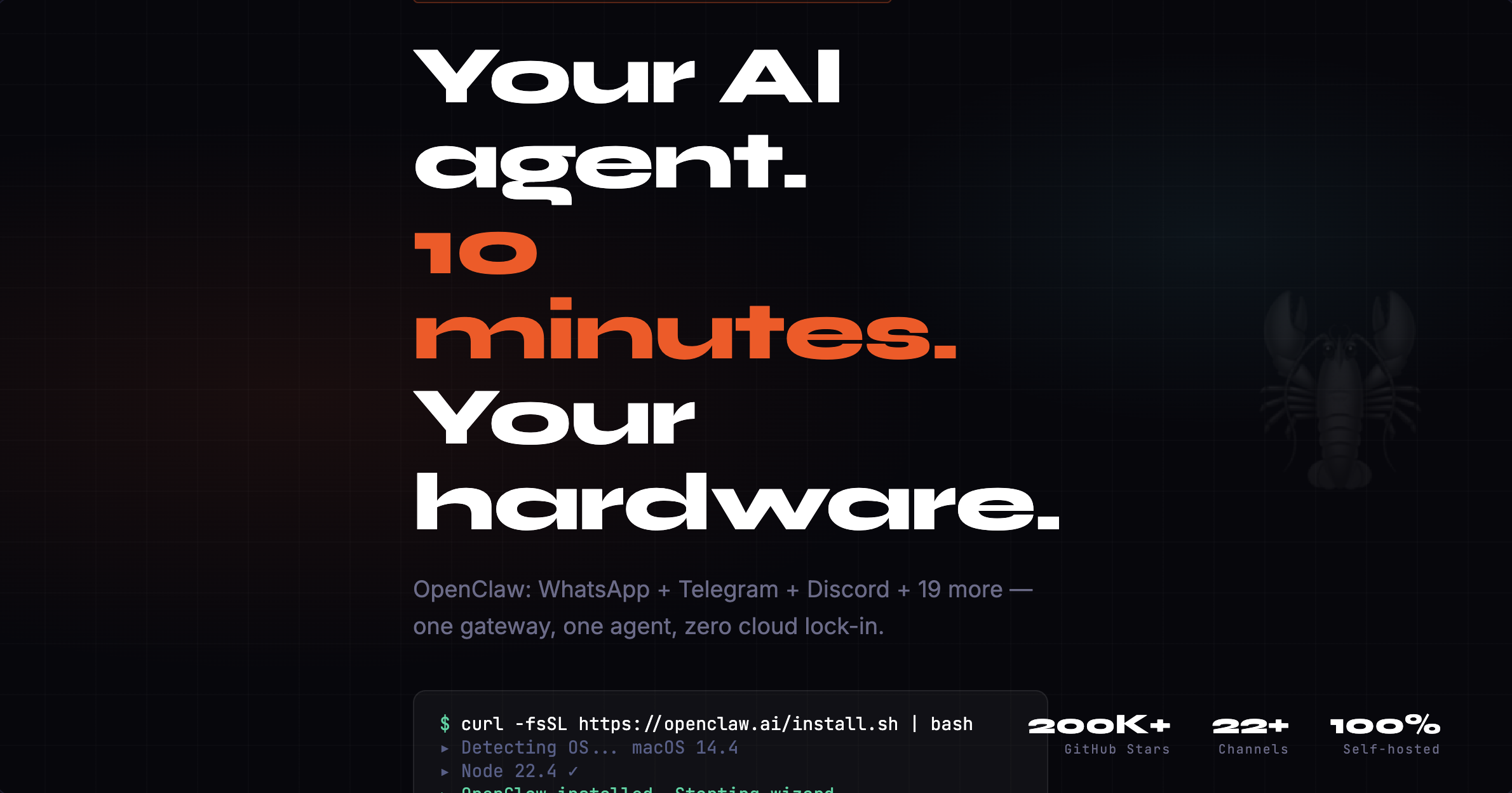
Your own AI running on WhatsApp, Telegram, and Discord — simultaneously. On your hardware. Complete installation and setup guide.
12 min read
OpenClaw Installation Guide: From Zero to AI Agent in 10 Minutes
Your own AI running on WhatsApp, Telegram, and Discord — simultaneously. On your hardware. This is how.
Before you touch a terminal
Most people install OpenClaw, get it running on Telegram, and call it a day. That's like buying a Formula 1 car and only using it to go to the grocery store.
To actually use OpenClaw well, you need to understand what you're installing first. Not deeply — just the mental model.
OpenClaw has three moving parts:
-
The Gateway — a single long-lived process that runs on your machine. It's the control plane. Every message from every platform flows through here. It handles routing, scheduling, config, and sessions. Think of it as the switchboard.
-
The Agent Runtime — the brain. Each agent is an isolated conversational context with its own memory, tools, workspace files, and session history. It runs an agentic loop: receive message → build context → call model → execute tools → stream reply → save to disk.
-
Channels — the integrations. WhatsApp, Telegram, Discord, Slack, Signal, Google Chat — 22+ platforms, all running simultaneously, all normalized into the same internal message format and delivered to the same agent.
One Gateway. One agent (or many, if you want). Unlimited channels.
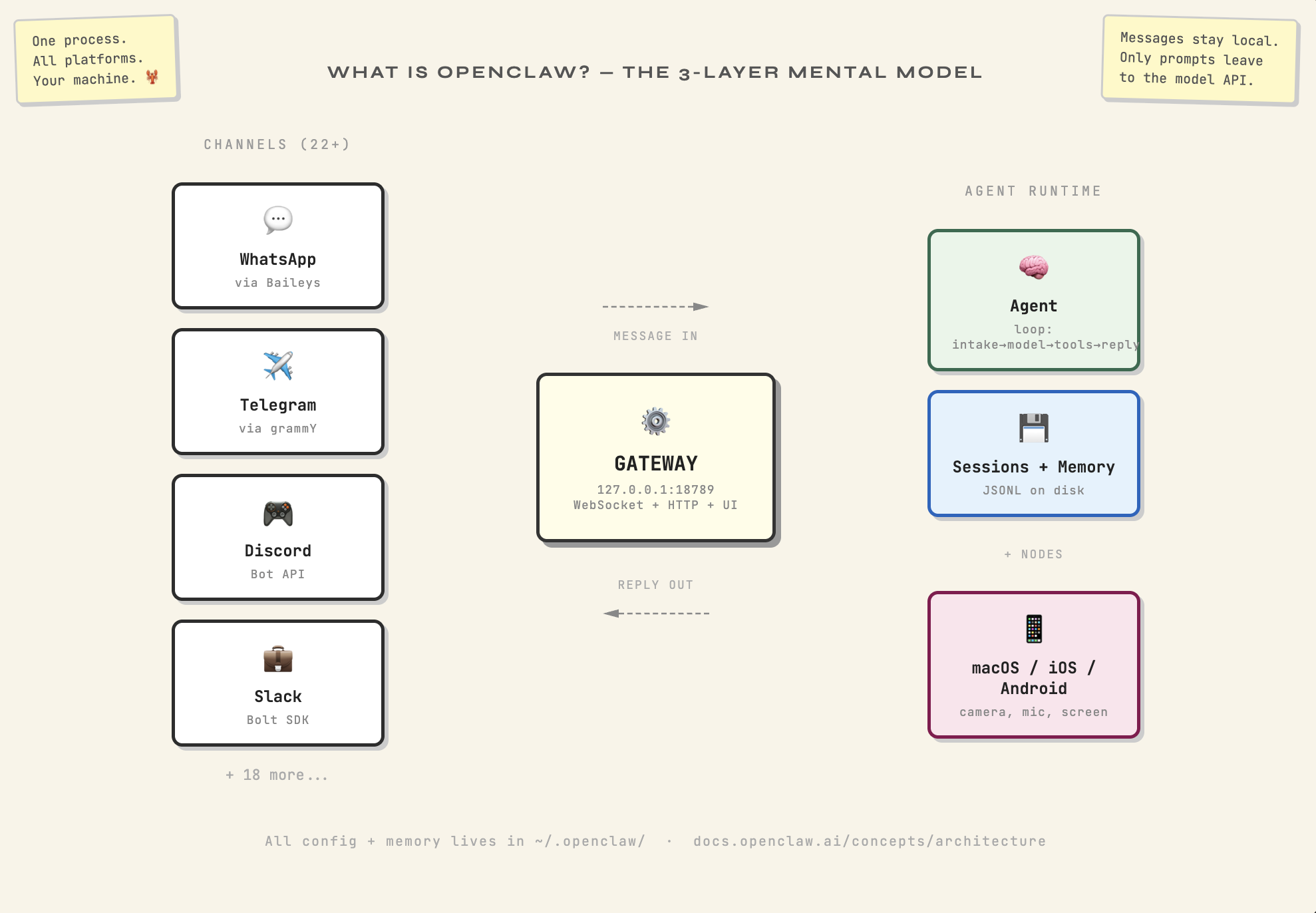 Caption: "Here's what you're actually installing. One process. All platforms. Your machine."
Everything lives locally under ~/.openclaw/. Conversations, memory, credentials, config — all on your machine. The only thing that leaves is the prompt to your model provider.
→ Docs: Architecture | Agent Runtime
Prerequisites
You need Node.js 22 or higher. That's it.
OS support:
- macOS — native, full support including the companion app
- Linux — native, full support
- Windows — use WSL2. This isn't optional, it's the strongly recommended path. Native Windows works but WSL2 is smoother.
Check your Node version:
node --version
If you're below 22, the installer will handle it for you on macOS (via Homebrew) and Linux (via NodeSource).
→ Docs: Install Overview | Node.js
Installation paths
The recommended path — one-liner installer
macOS / Linux / WSL2:
curl -fsSL https://openclaw.ai/install.sh | bash
Windows PowerShell:
iwr -useb https://openclaw.ai/install.ps1 | iex
What this actually does under the hood:
- Detects your OS
- Ensures Node 22+ is present (installs if not)
- Installs OpenClaw globally via npm
- Launches the onboarding wizard automatically
Manual install
npm install -g openclaw@latest
openclaw onboard --install-daemon
Docker (for server/VPS deployments)
./docker-setup.sh
# or via Docker Compose using ghcr.io/openclaw/openclaw
Best for headless servers, Hetzner, Fly.io, Railway, Render.
Nix (for reproducible setups)
Via the nix-openclaw Home Manager module. Gives you instant rollback and declarative configuration. The right choice if you're already in the Nix ecosystem.
Ansible (for VPS automation)
Automated setup with Tailscale, UFW, Docker, and systemd hardening built in. One playbook, production-ready.
→ Docs: Installer Internals | Docker | Nix | Ansible
The onboarding wizard — step by step
After the installer runs, the wizard launches automatically. Here's what each step actually does:
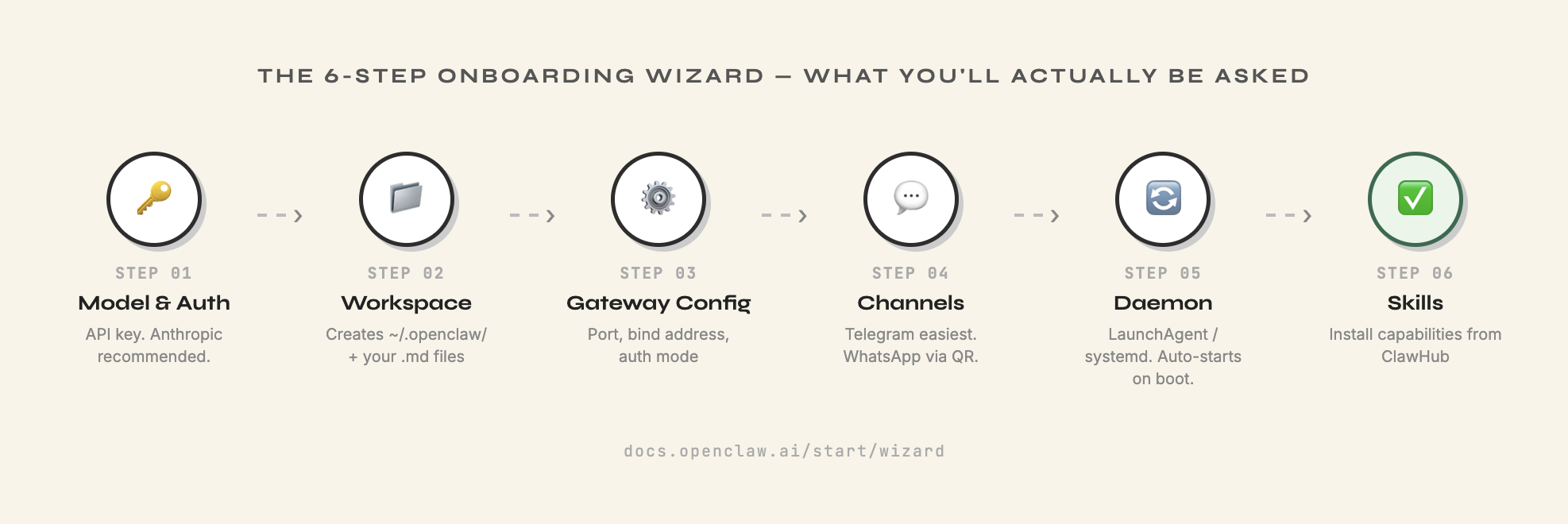 Caption: "Here's exactly what the installer asks you. No surprises."
Step 1 — Model & Auth
Choose your LLM provider and enter your API key. Anthropic (Claude) is the recommended starting point — the system prompt and tool use are optimized for it. OpenAI, OpenRouter, and local models (Ollama, LM Studio) also work.
Step 2 — Workspace setup
Creates ~/.openclaw/workspace/ and populates your initial markdown files (AGENTS.md, SOUL.md, USER.md, etc.). More on these below — they're the most important files in the entire system.
Step 3 — Gateway configuration
Sets your port (default 18789), bind address, and auth mode. Leave defaults unless you have a reason to change them.
Step 4 — Channel connections
Connect your first messaging platform. Telegram is the easiest starting point — just create a bot via @BotFather, paste the token, done. WhatsApp requires a QR code scan. Discord needs a bot application.
Step 5 — Daemon installation
Installs OpenClaw as a background service — LaunchAgent on macOS, systemd user unit on Linux. This means the Gateway starts automatically on boot and stays running.
Step 6 — Skills installation
Installs initial skills from ClawHub. Skills are markdown-based tool definitions the agent reads at runtime. Think of them as capabilities you're giving your agent.
→ Docs: Onboarding Wizard | Onboarding Overview
Understanding the file structure
This is the section most people skip. Don't skip it.
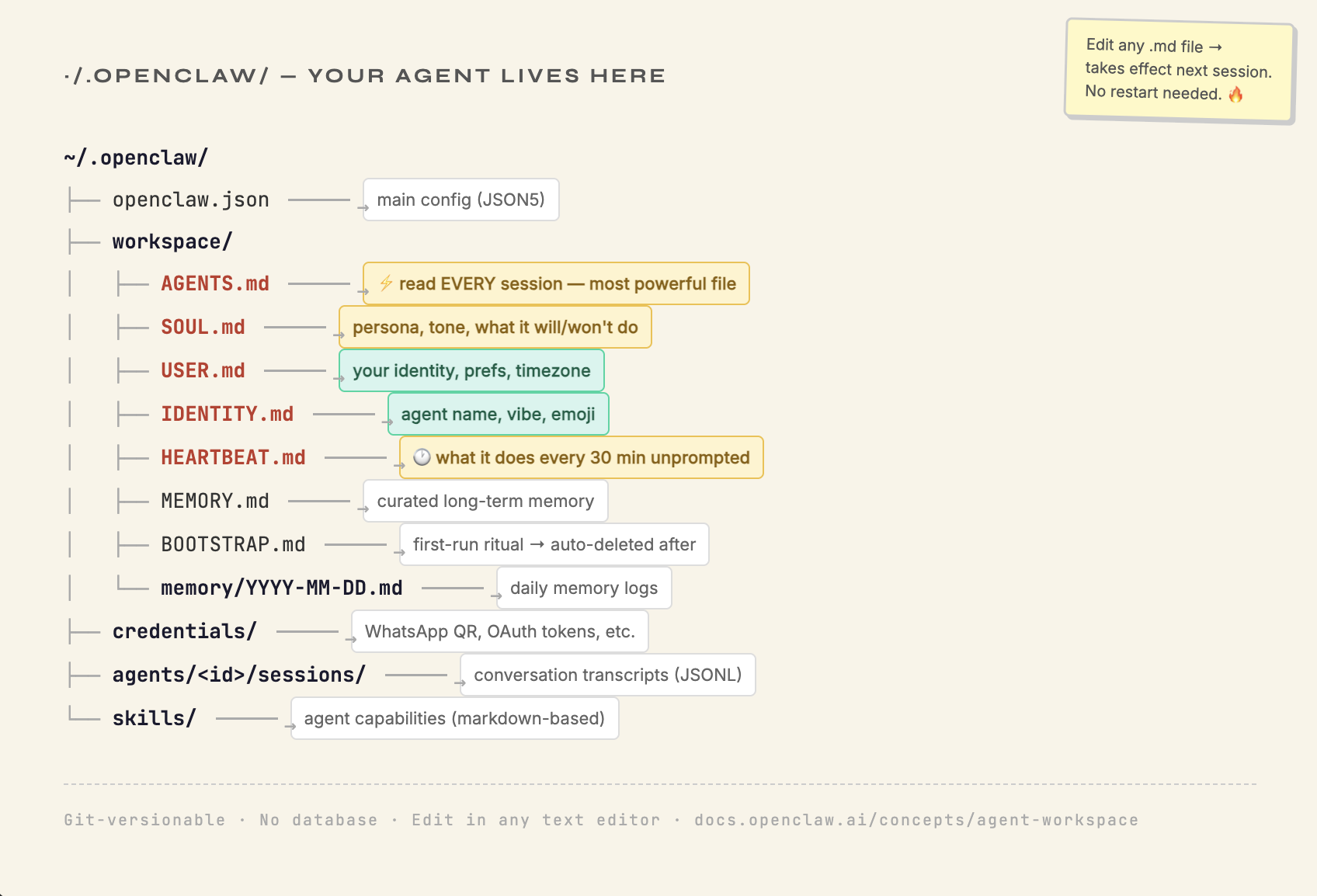 Caption: "The file that controls everything: AGENTS.md. Read every single session. No restart needed."
⚠️ This is your highest-engagement image — the annotated file tree visual
Caption: "The file that controls everything: AGENTS.md. Read every single session. No restart needed."
⚠️ This is your highest-engagement image — the annotated file tree visual
OpenClaw's most distinctive design decision is treating your agent as a collection of files on disk. Identity, memory, operating instructions, tool notes — all of it lives as ordinary Markdown in ~/.openclaw/workspace/.
No database, no GUI required, no recompilation. Edit a file, it takes effect next session.
~/.openclaw/
├── openclaw.json             # Main config (JSON5 format)
├── workspace/
│   ├── AGENTS.md            # ⚡ Operating instructions — read EVERY session
│   ├── SOUL.md              # Persona, tone, what it will/won't do
│   ├── USER.md              # Your identity, preferences, timezone
│   ├── IDENTITY.md          # Agent name, vibe, emoji
│   ├── HEARTBEAT.md         # 🕐 What it does every 30 min unprompted
│   ├── MEMORY.md            # Curated long-term memory
│   ├── BOOTSTRAP.md         # One-time first-run ritual (auto-deleted after)
│   ├── TOOLS.md             # Your notes on tool usage
│   ├── memory/
│   │   └── YYYY-MM-DD.md    # Daily memory logs
│   └── skills/              # Workspace-specific skills
├── credentials/             # Channel credentials (WhatsApp QR, OAuth, etc.)
├── agents/
│   └── <agentId>/
│       ├── sessions/        # Session transcripts (JSONL)
│       └── agent/
│           └── auth-profiles.json
├── skills/                  # Managed/shared skills
└── extensions/              # Installed plugins
The files that matter most
AGENTS.md — This is the most powerful file you control. It's injected into the system prompt at the start of every single session. Operating procedures, rules, workflows, tool preferences — put them here. Think of it as your agent's job description that it re-reads before every shift.
→ Reference: Default AGENTS.md | AGENTS Template
SOUL.md — Persona, tone, personality boundaries. What kind of entity is this agent? What will it refuse? How does it speak? This is where you give it character.
→ Reference: SOUL Template
USER.md — Who you are. Name, timezone, preferences, context about your work. The agent reads this so it doesn't have to ask basic questions about you every session.
→ Reference: USER Template
HEARTBEAT.md — The checklist your agent works through every 30 minutes, unprompted, even when you're not messaging it. Daily summaries, reminders, monitoring tasks — whatever you want it to check in on. Leave it empty to skip heartbeat API calls entirely.
→ Reference: HEARTBEAT Template | Heartbeat
MEMORY.md — Curated long-term memory. The agent writes to daily logs automatically (memory/YYYY-MM-DD.md), and can promote important facts to MEMORY.md for persistent recall across all future sessions.
→ Reference: Memory
BOOTSTRAP.md — A one-time ritual that runs the very first time the agent starts. Use it to make the agent introduce itself, set up its workspace, or ask you onboarding questions. It auto-deletes after running.
→ Reference: BOOTSTRAP Template
Why markdown matters
These files are version-controllable with Git. They're readable in any text editor. They're shareable — you can give someone your AGENTS.md and they instantly understand how your agent operates.
There's no GUI required to change your agent's behavior, no restart needed. Edit the file, next session picks it up.
This is intentional design. Your agent is durable, inspectable, and yours.
→ Docs: Agent Workspace
Verifying your setup
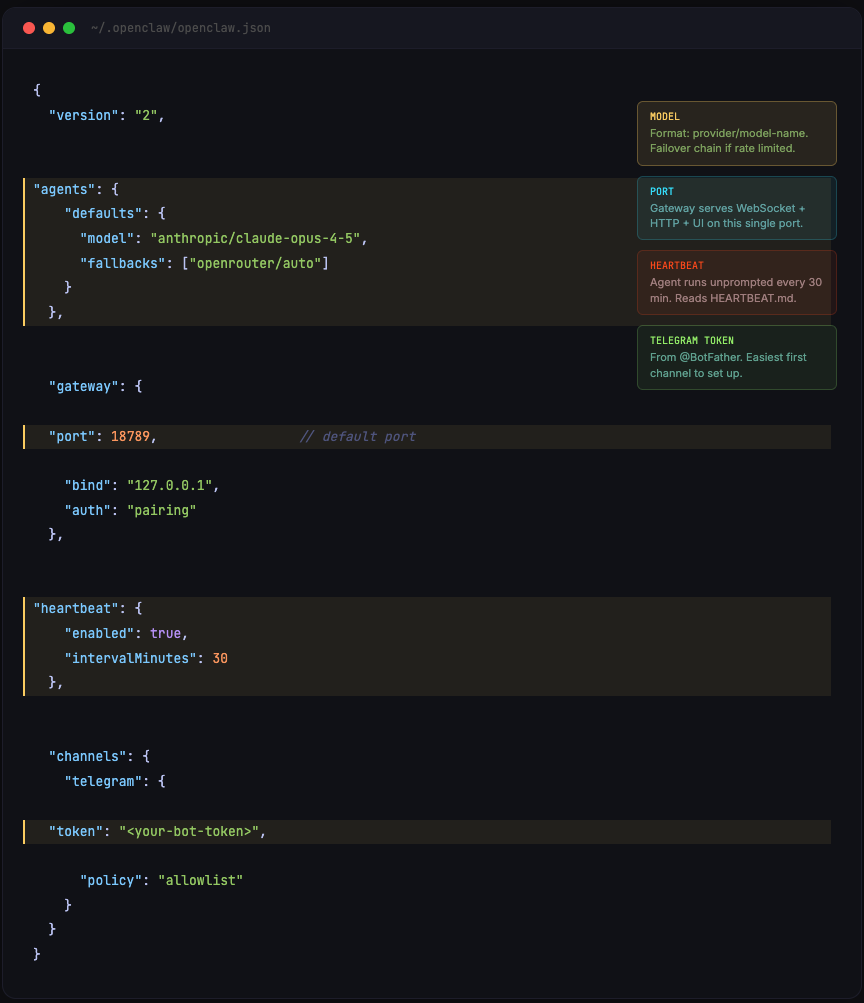 Caption: "The full config is surprisingly readable. Here's what each key field actually does."
# Check gateway status
openclaw gateway status

# Open the dashboard
openclaw dashboard
# or browse to http://127.0.0.1:18789/
The Control UI is a browser-based dashboard served directly by the Gateway. From here you can chat, manage sessions, view logs, configure cron jobs, monitor node status, and edit config — all without touching the terminal.
Send a message to your agent on whatever channel you connected. If it replies, you're done.
→ Docs: Control UI | Gateway Runbook | Troubleshooting
What's next
Article 1 gets you running. But running is just the beginning.
In Article 2, we go deep on the mental model — what a Gateway actually is at the protocol level, how the agent loop works, what nodes are, and how memory and sessions are structured. The stuff that makes you a power user instead of just a user.
In Article 3, we cover Talk Mode (always-on voice), multi-agent routing, multiple gateways, cron automation, Docker sandboxing, and the Lobster workflow shell.
In Article 4, we look at what the community is actually building and earning with OpenClaw — from grocery automation to 14-agent orchestration setups.
All docs referenced in this article: docs.openclaw.ai
How to use this guide
For X/Twitter thread:
- Open
file_69...htmlin your browser - Screenshot each creative section at the recommended size:
- CREATIVE 01 (#hero) → 1200×630 for Tweet 1 cover
- CREATIVE 02 (#arch) → Tweet 2
- CREATIVE 03 (#filetree) → Tweet 5 (highest engagement potential)
- CREATIVE 04 (#wizard) → Tweet 4
- CREATIVE 05 (#config) → Tweet 6
- Post as a thread with article excerpts + visuals
For blog post (Medium/Substack/Dev.to):
- Screenshot the visuals from HTML
- Save to
assets/folder - Upload images and update paths in this markdown
- Publish with proper attribution
For dashboard content:
Host at [NOXX_DASHBOARD_URL]/guides/openclaw-installation and link from tweets
Share
Post on social or copy the link to share anywhere.